
Accurate monitor color matters when you edit photos: a screen that looks too warm, too cool, or too bright can lead you to make corrections that do not translate well to other displays or prints. A monitor calibrator measures your screen and helps create a profile for more consistent color. The right tool depends on your display, how much control you need, and whether you also want references for camera or video work.
Table of Contents
Quick Comparison
| Product | Best for | Standout feature |
|---|---|---|
| Datacolor SpyderPro | Advanced photo and video workflows | Broad display support and detailed analysis tools |
| Datacolor Spyder X Pro | Photographers who want a straightforward setup | Guided calibration with before-and-after comparison |
| Calibrite Video Photo Kit with Display Plus HL | Hybrid photo and video creators | High-luminance calibration plus a capture reference tool |
| Calibrite Creator Kit with Display 123 | Creators who want screen profiling and capture tools | Monitor colorimeter bundled with ColorChecker Passport Video 2 |
Our Picks: Best Monitor Calibration Tools For Photo Editing reviews
Datacolor SpyderPro: The Most Flexible Option for Advanced Displays

The SpyderPro is a monitor calibration tool for photographers and video editors who want more than a basic screen profile. Its software lets you set gamma, white point, and brightness, then choose a standard or deeper calibration workflow. The deeper option measures more grayscale points; Datacolor says the resulting accuracy improvement varies by display.
Its broad display support is a key reason to consider it. The product is listed as compatible with LED, OLED, QD-OLED, Mini LED, and Apple Liquid Retina XDR screens, with support for displays up to 12,000 nits. It also includes display analysis for factors such as uniformity, brightness, contrast, gamut, tone response, and white point. USB-C is built in, and a USB-A adapter is included.
For a multi-monitor studio, SpyderPro offers tools to help keep displays consistent, including StudioMatch and SpyderTune. It can also export 3D LUTs for compatible video monitors. Those extras may be more than a still photographer needs, but they make this the most capable pick here for someone working across varied screens or photo and video projects.
The trade-off is that its many options may feel excessive if you only want a quick, simple profile for one standard monitor. Its advanced features are most useful when your equipment and workflow can take advantage of them.
Pros:
- Supports a wide range of display backlight types, including OLED and Mini LED.
- Offers standard and deeper calibration workflows.
- Includes display analysis, multi-monitor tools, and 3D LUT export.
- Connects through USB-C and includes a USB-A adapter.
Cons:
- Its advanced controls may be unnecessary for a simple single-monitor setup.
- Some features are intended for compatible video workflows rather than photo editing alone.
Verdict: Choose SpyderPro if you need detailed control, broad display support, or one calibration tool for a mixed photo and video setup.
Datacolor Spyder X Pro: A Simple Route to Monitor Calibration
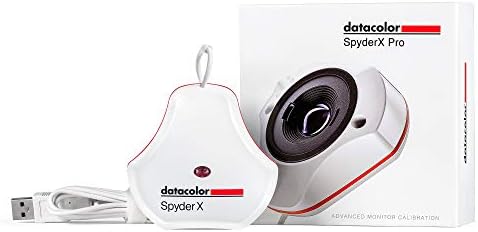
The Spyder X Pro is aimed at photographers who want a guided calibration process without a steep learning curve. Its software uses a wizard-style workflow, offers 12 predefined calibration targets, and is designed to complete a calibration in about a minute or two. A lens-based color engine and room-light monitoring are among its listed features.
After calibration, SpyderProof lets you compare the display before and after using your own images. This can help you see how the profile affects your editing screen rather than relying only on settings or numbers. The software can also calibrate multiple laptop and desktop displays, which is useful if you edit on more than one screen.
Compared with SpyderPro, this model has a more focused feature set. It offers the core calibration and comparison tools, but the product information does not list SpyderPro’s deeper grayscale option, broad high-brightness support, or 3D LUT export. That makes the X Pro a sensible fit for a straightforward photo-editing setup, but less suited to specialized HDR or video-monitor workflows.
Pros:
- Guided workflow designed for users who are new to calibration.
- Includes 12 predefined calibration targets.
- Provides a before-and-after comparison using your own images.
- Can calibrate multiple desktop and laptop displays.
Cons:
- Has fewer advanced workflow features than SpyderPro.
- Its listed capabilities are less focused on very high-brightness displays and video LUT workflows.
Verdict: Pick the Spyder X Pro if you want a guided, uncomplicated way to profile everyday photo-editing displays.
Calibrite Video Photo Kit: High-Brightness Calibration Plus Capture References

This kit pairs the Display Plus HL colorimeter with a ColorChecker Passport Video 2. The colorimeter is specified for measurements up to 10,000 nits and is intended for high-brightness screens such as Mini LED, OLED, and Apple XDR panels. That makes it a specialized choice for creators using displays that call for high-luminance calibration.
The Passport Video 2 adds a capture reference for photo and video work. The supplied product information describes it as a tool for setting white balance, checking exposure, and matching cameras. Together, the two pieces cover both monitor profiling and parts of the capture workflow, which may be helpful if you work with multiple cameras or in changing lighting conditions.
This is a more specific bundle than the Spyder X Pro: its appeal is not just calibrating a screen, but linking capture references with post-production color work. The product data does not provide as much detail about the calibration software workflow as it does for the Datacolor options, so shoppers who prioritize step-by-step setup information may want to compare that closely before choosing.
Pros:
- Display Plus HL supports measurements up to 10,000 nits.
- Designed for high-brightness Mini LED, OLED, and Apple XDR panels.
- Includes a Passport Video 2 for white balance and exposure reference.
- Can suit creators working across cameras, screens, and video footage.
Cons:
- The capture-reference tool may be unnecessary if you only need monitor calibration.
- Its high-luminance capabilities may be more than a standard display requires.
Verdict: Consider this kit if you use a high-brightness display and want a camera reference tool alongside your monitor colorimeter.
Calibrite Creator Kit: Monitor Profiling for Photo and Video Creators

The Calibrite Creator Kit combines the Display 123 colorimeter with a ColorChecker Passport Video 2. The Display 123 is intended to profile a monitor so you can work with more consistent on-screen color while editing or grading. The bundled Passport Video 2 adds reference tools for exposure, white balance, and camera matching.
This pairing is aimed at creators who want to manage color from capture through editing, including people who work with both still images and video. It offers a practical alternative to buying a monitor-only calibrator if you will also use the capture reference. The product information describes an easy profiling workflow, though it does not list the same range of advanced display analysis or high-brightness measurement details as the SpyderPro and Display Plus HL options.
For a photographer who only needs to create a monitor profile, the bundled camera tool may not add much. But for a hybrid shooter, it can bring useful capture and display references into one kit. Check the listing for the current package details and compatibility information before ordering.
Pros:
- Includes a colorimeter for monitor profiling.
- Bundles a Passport Video 2 for capture and camera-matching references.
- Designed for photo, video, grading, and editing workflows.
- Offers a straightforward profiling workflow according to the product description.
Cons:
- The capture tool may go unused if you only edit still photos.
- The supplied details list fewer advanced display-analysis features than SpyderPro.
Verdict: Choose the Creator Kit if you want basic monitor profiling together with references for photo and video capture.
How to Choose a Monitor Calibration Tool for Photo Editing
Match the calibrator to your display
Start with the screen you plan to profile. Standard LED displays may not need the same specialized support as OLED, Mini LED, QD-OLED, or Apple XDR panels. If you use a high-brightness display, check the calibrator’s stated measurement range and supported display types. A tool with broad compatibility can be useful if you expect to change or add monitors later.
Decide how much control you need
A simple guided workflow can be enough if your main goal is a consistent profile for photo editing. More advanced options, such as deeper grayscale measurement, adjustable gamma and white point, or detailed display analysis, are useful when you need to fine-tune a setup or diagnose screen differences. Extra controls are only helpful if you plan to use them.
Consider whether you edit on more than one screen
If you work across a laptop and a desktop monitor, check whether the software supports multiple displays and whether it offers tools to keep them aligned. A consistent profile on each screen helps reduce the chance that you make different edits simply because one display looks warmer or brighter than another.
Think about your full workflow
Some kits include more than a monitor colorimeter. A camera reference can help with exposure, white balance, or matching cameras, while video-focused features such as 3D LUT export can matter for compatible monitor workflows. If you only edit still images on one screen, a monitor-only tool may be a better fit than a larger bundle.
Check connection and software needs
Confirm that the calibrator can connect to your computer and that its software supports your operating system. For example, the SpyderPro includes a USB-C connection and a USB-A adapter. Also consider whether you prefer an automatic, guided setup or a workflow with more settings to adjust.
Choose features you will actually use
Price and package contents can change, so compare the current listing details rather than choosing by feature count alone. A more specialized kit may be worthwhile for a high-brightness display or multi-camera workflow, while a simpler calibrator may cover the needs of a photographer who wants dependable monitor profiling.
Frequently Asked Questions
Why should I calibrate my monitor for photo editing?
Calibration helps your display show color and tone more consistently. That gives you a more reliable basis for editing and can reduce the risk of adjusting an image to compensate for a screen that is too bright, too dim, or has a color cast.
How often should I calibrate my monitor?
The right interval depends on your display and how critical color accuracy is to your work. Recalibrate if your screen’s appearance changes, after changing important display settings, or when you want to check whether the existing profile is still accurate. SpyderPro includes a CheckCal feature for a quick calibration check.
Can I use one tool with more than one monitor?
Some of these options support multiple displays. Spyder X Pro software is described as supporting multiple laptop and desktop monitors, while SpyderPro supports an unlimited number of displays subject to the computer’s capability. Check the software requirements for the model you choose.
Do I need a high-brightness colorimeter for photo editing?
Not necessarily. A high measurement range is most relevant if you use a very bright display, such as certain Mini LED or OLED panels. For a standard photo-editing monitor, a less specialized calibrator may be sufficient.
What is the difference between a monitor calibrator and a ColorChecker Passport?
A monitor calibrator measures your display and helps create a screen profile. A ColorChecker Passport Video 2 is a capture reference intended to help with tasks such as exposure, white balance, and camera matching. The Calibrite kits in this guide include both types of tools.
Does calibration guarantee that prints will match my screen?
No. Calibration helps make your monitor more consistent, but the final result also depends on factors such as the printer, paper, color-management settings, and viewing light. It is one important part of a reliable color workflow, not a guarantee of an exact match.
Final Recommendation
For most photographers who want a straightforward calibration process, the Datacolor Spyder X Pro is the simplest fit in this group. Choose the SpyderPro if you need broader display support, more detailed analysis, or advanced photo and video controls. For a workflow that also involves camera references, consider one of the Calibrite kits; the Display Plus HL version is the more specialized option for high-brightness screens. Before you buy, match the tool to your display and make sure you will use the extra features in the bundle.
